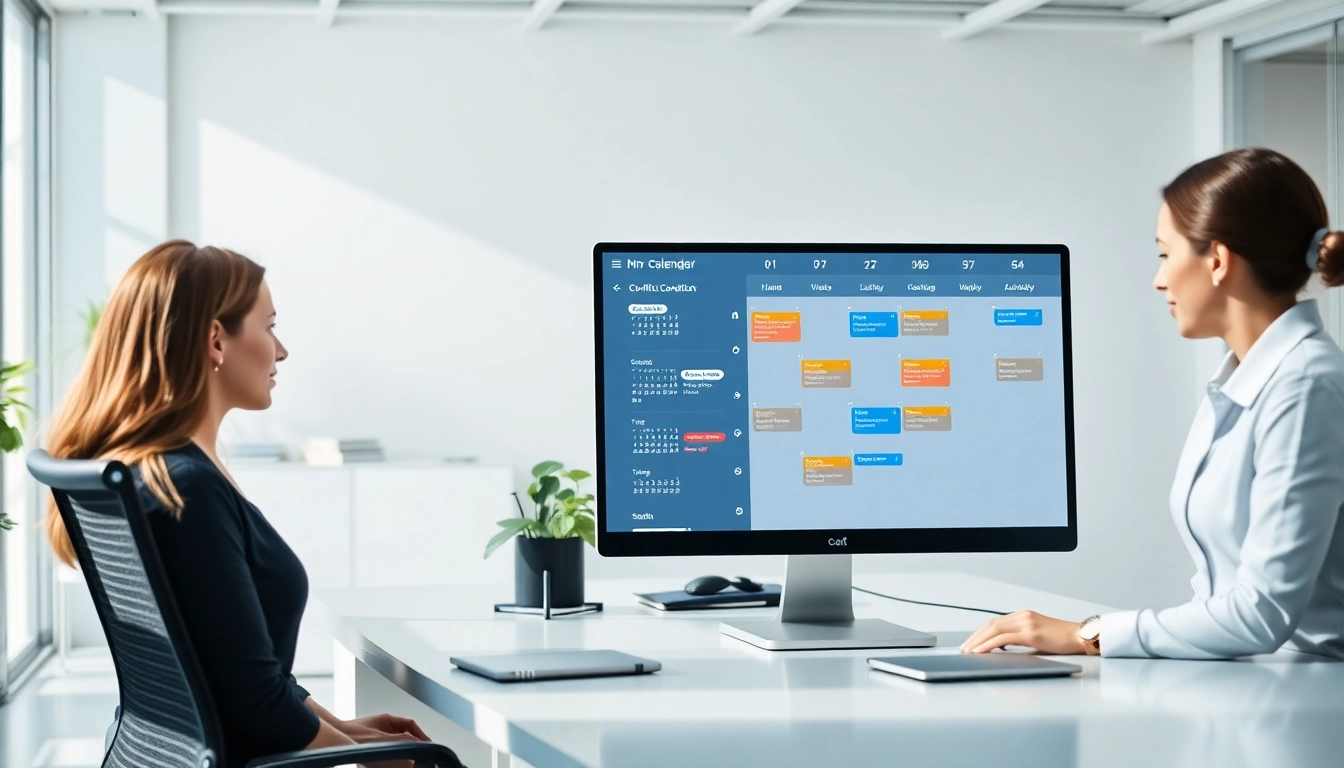
Understanding Calendar Conflicts
What are Calendar Conflicts?
Calendar conflicts occur when two or more scheduled events overlap in time, creating a situation where a participant cannot attend all engaged commitments. These overlaps can arise from poorly managed schedules, unexpected meeting requests, or simply poor coordination among team members. A calendar conflict typically manifests as an "overlapping appointment" or "double booking" alert, which can be frustrating and disruptive, potentially impacting productivity and workflow.
Common Causes of Calendar Conflicts
There are several factors that contribute to calendar conflicts:
- Poor Visibility: When individuals lack visibility into their team’s calendar, they may inadvertently schedule meetings at overlapping times.
- Last-Minute Changes: A sudden reschedule or a newly planned meeting can lead to conflicts without adequate notice.
- Multiple Calendars: Managing several calendars without proper sync can result in mismatched events and times.
- Lack of Buffer Time: Tight scheduling without breaks often leaves no room for unexpected overlaps, leading to conflicts.
- Time Zone Differences: Misunderstanding time zones can cause appointments to overlap when scheduled across different regions.
Impact on Productivity
Calendar conflicts can be detrimental to both personal and team productivity. When individuals are double-booked, time gets wasted in rescheduling or, worse, in missing important meetings altogether. This can lead to miscommunication and project delays, affecting overall team morale and efficiency. Moreover, constantly dealing with scheduling issues can add stress and detract from strategically allocated work time. To promote better productivity, it is essential to fix calendar conflicts automatically.
Benefits of Fixing Calendar Conflicts Automatically
Simplified Scheduling
Automating the conflict resolution process can greatly simplify scheduling. With tools set to decline overlapping invites or to notify users of conflicts, individuals spend less time managing their calendars and more time focusing on critical tasks.
Increased Efficiency
By integrating automatic conflict resolution capabilities, organizations can enhance operational efficiency. Employees won't have to worry about managing conflicting appointments manually, allowing for more seamless collaboration and less downtime due to scheduling mishaps.
Improved Communication
Automatic conflict management tools can enhance communication within teams. By ensuring that all members are aware of schedule changes and overlaps without manual input, teams can align better on priorities and timelines, fostering a collaborative environment.
Tools and Software to Fix Calendar Conflicts Automatically
Calendar Management Applications
Several calendar management applications offer built-in features to automatically resolve conflicts. Options like Google Calendar and Microsoft Outlook allow users to set preferences to decline conflicting meeting requests, manage availability, and sync events in real time. Establishing clear settings for these applications can ensure efficient management of appointments.
Integration with Other Tools
Integrating calendar applications with project management and communication tools enhances the functionality of these systems. By linking tasks and calendar events, users can prevent conflicts that may arise from simultaneous commitments without manual oversight.
Choosing the Right Solution
When selecting a calendar management solution, consider the needs of your organization, the types of tools already in use, and user experience feedback. A robust solution should encompass automatic conflict resolution, synchronization capabilities, and easy integration with other essential tools.
Step-by-Step Guide to Fix Calendar Conflicts Automatically
Setting Up Your Calendars
Setting up your calendars correctly is crucial for automatic conflict resolution:
- Centralize Calendars: If you use multiple calendars, consider centralizing them into one main application to ensure consistent visibility of all events.
- Integrate with Other Systems: Connect your calendar with tools such as email and scheduling applications to facilitate real-time updates.
- Configure Availability Settings: Set your availability preferences by defining the hours you are open for meetings and those that should be blocked off.
Adjusting Settings for Conflict Resolution
Most calendar applications have specific settings for managing conflicts:
- Enable Auto-Decline: Look in your calendar’s settings for the option to automatically decline invitations that conflict with existing events.
- Set Up Notifications: Proactively set alerts for overlapping events to stay informed of potential conflicts before they arise.
- Use Time Buffers: Create buffer times between meetings to allow for overruns and reduce the likelihood of overlaps.
Testing and Troubleshooting
Once you have set up your calendars and adjusted the settings, it's essential to test the system:
- Conduct Simulated Scheduling: Create mock appointments that intentionally overlap to see how your system reacts.
- Investigate Issues: If conflicts still arise, check for updates, ensure all calendar integrations are working, and verify time zone settings.
- Gather Feedback: Regularly ask team members if they are facing scheduling issues and make adjustments as necessary.
Best Practices for Maintaining a Conflict-Free Calendar
Regularly Update Calendars
Frequent updates to your calendar are essential. Ensure that events are added promptly, and double-check for any potential conflicts before scheduling new appointments.
Utilize Time Buffers
Add buffer time between meetings to account for delays, overruns, or unexpected interruptions. This reduces stressors and creates a more manageable schedule.
Communicate Schedule Changes
Regularly communicate any changes to your schedule with team members. Transparency helps everyone stay in sync, minimizing the chances of conflicts arising due to communication lapses.
Frequently Asked Questions
1. How can I set my calendar to automatically decline conflicting invitations?
You can set your calendar application settings to automatically decline any meeting invitations that conflict with your existing events. This option is typically found in the settings under 'auto-decline' features.
2. What tools help fix calendar conflicts automatically?
Many calendar management tools, such as Google Calendar and Microsoft Outlook, offer automatic conflict management features that help prevent overlapping appointments.
3. Can I synchronize multiple calendars to avoid conflicts?
Yes, many calendar applications allow you to synchronize multiple calendars which helps ensure your schedule remains clear and prevents overlaps.
4. What should I do if I still get conflicts despite automatic settings?
If conflicts persist, verify that all calendars are regularly updated and check your settings. Manual entries should also be reviewed to ensure their accuracy.
5. How do I adjust my calendar settings for better conflict management?
Access your calendar settings to enable options like two-way sync, automatic event decline for conflicts, and adjust visibility settings for better access control.